Turn Your Old Smartphone Into a Music Player

If you happen to have an older smartphone, Android or iPhone, there is a good chance that its just collecting dust somewhere! Instead of that, why not actually use it as a music player! Here is how:

Make sure the software on your phone is up to date with the latest compatible software available for that device: This step is important if you want to use a certain music app to play music, such as Apple Music, Google Play Music, Spotify, or Pandora. If you’re not sure how to check for software update, click here to iOS Software update guide, or here for Android software update guide.

With older devices, there is a good chance that the device’s battery won’t last long, therefore you need a power source to keep the device running while you’re playing your favorite jam! You can solve this problem in two ways: A Bluetooth speaker + a power source (portable or not); which is a good solution but then you have to remember to connect charge your power bank, or keep plugging your device to the wall. Therefore, I prefer to use a speaker docking station. The great advantage of a docking station is that it will always provide power to your phone, and there is no need to worry about connecting your device via bluetooth.

Speaker docks, especially for older phones, are cheap. You can find ones online on Amazon for example (click here: Speaker Docks*) for less than $50. Or if you’re lucky enough, you can find ones at your local thrift shop for less than $10!.

Here is a picture of my old iPhone 4 with a cracked screen, and the dock I found at a local thrift store:

Now when it comes to listening to music, you have few options, and that depends on how old your device is and what apps you can install and run on it without any interruptions. Some apps, like Spotify, might require a certain OS version to run, and others might work but they won’t run smoothly. Therefore, you can either download music directly to your device, via iTunes for iPhone, or simply by putting some on a memory card for Android and play them on the device, and with that you don’t even need an internet connection. Or, you can find a streaming website and launch that directly from your phone’s internet browser. There are many of such websites, including possibly your favorite local FM channel, but the two I use the most are: TuneIn and Radio Garden.

I hope you found this article useful, and if you have other ideas or links that your like to use for streaming please make sure to let them in the comment section below!

Thanks! -Kais

* paid links; As an Amazon Associate I earn from qualifying purchases
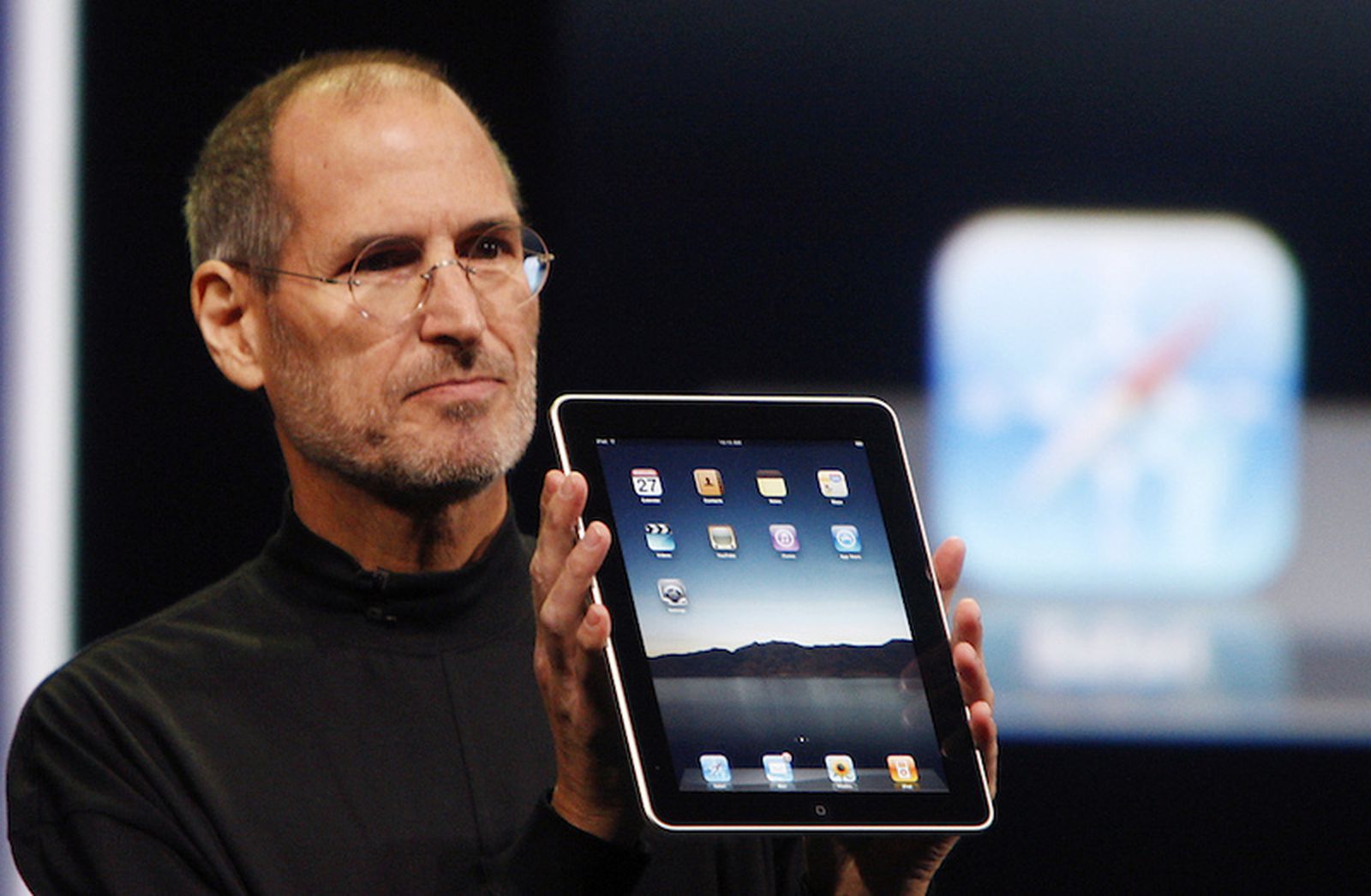
What To Do With An Old iPad And How To Make It Run Faster?

If you have an older iPad that is just sitting in your drawer collecting dust, you can probably still use it for a thing or two. I found my old iPad Mini (original iPad Mini) that stopped receiving iOS update as of iOS 9.3.5, and I wasn’t sure what to do with it. I looked at the trade-in value and it was about $20, which is totally not worth it. So I figured let me try to run it and see what I can do with it. But first things first, I had to charge it as it hasn’t ran for at least couple of years.

  1. Reset And Delete Everything: The first thing I did as soon as the iPad started was a full reset. You can do that by going to the Settings -> General -> Reset -> Erase All Content and Settings. Of course before doing so you want to make sure that there is nothing that you need is still on that iPad, and it has been backed up to the iCloud (if needed), otherwise you should be good to go. The reset process will take few minutes, and then you can setup the iPad again as if you just bought it now. One thing I would recommend for such as older models is to not restore backup from iCloud and setting it up as a new iPad. This will not only be faster to setup but also will ensure that there is no old files/apps get added back to the iPad that was slowing it again.
  2. Check for update: If you haven’t ran your iPad for sometime there is a chance that there is a new update waiting for you. For me, my iPad was already updated to the latest iOS version it was supporting. You can check that by going to the Settings -> General -> Software Update.
  3. Disable Some Settings: After erasing all settings the iPad still felts a bit slow, so I decided to disable some settings that could speed it up a little bit more, such as:
    • Reduce Motion: Go to the Settings -> General -> Accessibility and turn on the Reduce Motion settings. This will turn off certain user interface animations, which will make the iPad feel a bit faster.
    • Notifications: After you download the apps that you want, we’ll touch on that in a bit, make sure to turn off all the unwanted notifications that you don’t really need. You can do that by going to the Settings -> Notifications and then choosing the app you want to turn off the notifications for.
    • Spotlight Search: Turning off Spotlight search will also help speeding up your iPad since it doesn’t have to process app information every time you launch the Spotlight search. You can do that by going to the Settings -> General -> Spotlight Search and turning off all the apps.
    • Background App Refresh: Turning off Background App Refresh will prevent apps from updating their data in the background when they’re not running. Disabling this option will not only speed up your iPad, but will also help preserve battery life too. You can do that by going to the Settings -> General -> Background App Refresh and hitting that off switch.

Now that you have done that your iPad should feel a little bit more useable that it was before. Keep in mind that some apps might have stopped supporting the version of iOS that your iPad is running, so don’t be surprised if thats the case. Now to the other question, What can you do with a useable iPad? Well, there are few things that you can try:

  1. A Reading Device: The Apple’s iBooks app is a very lightweight app that can run on most old iPads, if you have some books in your library you can read them via this iPad. I’m planning on taking my iPad with me to work and just use it as a reading device on my launch break instead of just reading books or watching YouTube on my phone. That being said, and depends on how many apps that you can install, this iPad could work as a distraction free device without the social media apps or any other apps that could pop a notification for you and distract you from what you were reading/doing. In addition to iBooks, you can download the Kindle app, or use the Apple News app, your favorite RSS reader app, or just launch Safari and load your favorite, and lightweight, news website.
  2. YouTube: If YouTube still runs on your iPad then you’re in luck, you can use this iPad for streaming YouTube videos in the kitchen or living room instead of watching them on your laptop or your expensive and new iPad. Speaking of the kitchen, this iPad can be a very useful in the kitchen to watch and make yummy recipes without having to worry about getting it dirty.
  3. Music: Similar to YouTube, you can use the iPad to stream music to a Bluetooth speaker, and it can be as your dedicated Internet music player that doesn’t leave home and is always-on in the kitchen.
  4. Give it to your kids: If you have kids, and they don’t have their own brand new iPad then they wouldn’t mind having this iPad to play some games or watch YouTube Kids.

For me personally, and as mentioned before, I’m planning on using this iPad for reading only especially at bedtime and lunchtime. The apps that I have currently have on this iPad are: iBooks, News, Mail, and I have created few Home Screen shortcuts for some of the website that I visit on regular basis for news.

I hope you enjoyed reading this quick post, please let me know in the comments section below how do you currently use or plan to use your old iPad. Thanks!


What is Digital Nationalism?

Nationalism, according to Dictionary.com, is a strong belief that the interest of a country or a nation are of primary importance. When it comes to Digital Nationalism, and according to the “The Rising Threat of Digital Nationalism” article by WSJ, it can be defined as the set of rules and regulations a government or a country put in place to either control, monitor, or restrict the Internet in that country. 

The concept of Digital Nationalism can include, but not limited to, restricting or limiting the citizens of one nation from accessing certain websites, monitoring the online activities of their citizens, restrict cross-border data flows, and finally being able to temporarily shut down the Internet to the whole country if needed. For instance, and based on this report by Access Now, there were 196 Internet shutdowns in 25 countries around the world, mostly in Asia and Africa. 

Different countries have implemented different flavors of this concept to “guide” the Internet access within their borders, and probably the most well-known example of this is China. For instance, the Chinese people don’t have access to websites like Wikipedia, Facebook, and Google. When Google used to operate in China, they were forced to comply with the censorship requirements set by the Chinese government, which led to the termination of Google.cn website eventually (read more about this here: https://washex.am/2Cp7ZQN).  

China became an example to other nations in the world proving to them that the Internet can be managed and controlled. Many countries around the world, with or without authoritarian states, have implemented a version of Internet Nationalism following the Chinese model. Countries like Russia, Iran, and North Korea have setup their own networks to control and monitor access to the outside, and the real, Internet. Other first world countries, such as Canada, Australia, South Korea, have setup cross-borders data-flow restrictions. In Europe, the General Data Protection Regulation (GDPR), which is Europe’s digital privacy legislation, defines a set of rules designed to give EU citizens more control over their personal data, and limit or restrict companies from moving citizen’s data across the EU borders.

Different countries have different justifications when it comes to implementing rules around Digital Nationalism. For countries like Canada, Australia, and Europe, their sole purpose of doing this is to protect their citizens’ data privacy and their own national security, which in this should be justified. On the other hand, in some countries with authoritarian regimes, such as China, Russia, Iran, and some in the middle east, Digital Nationalism rules are regulations are set to protect the regime itself, rather the citizens of that country, which in this case shouldn’t be justified at all. 

Censoring and monitoring the Internet is mostly done to restrict basic human rights such as freedom of speech and freedom of opinion and expression. Internet censorship can include, but not limited to, the restriction and monitoring of what can be published, read, accessed, viewed, downloaded, listened, or watched by the citizens, which basically means that each and every activity done by an individual on the internet can be track down to them. 

For example, in some middle east countries, Voice Over IP (VoIP) services were blocked, which include services like WhatsApp, Facebook Messenger and Skype. This forces citizens to use cell services to make calls instead of VoIP services which are free (read more about this here: https://zd.net/2Q8pRHZ). In more recent news, Iraq shutdown the Internet for majority of the country and blocked social media in order to suppress the anti-corruption protests (red more about this here: https://bit.ly/36ISeSL). 

Those actions that aim to limit the freedom of speech shouldn’t be justified nor accepted by the citizens of any country, but unfortunately not all countries around the world grant those basic human rights to their citizens. That being said, some developing countries don’t have access to the Internet at all, and they might be happy if they were granted access to it, even if it was censored. 

The following article from Wikipedia lists the Internet censorship categorized by country: https://en.wikipedia.org/wiki/Internet_censorship_and_surveillance_by_country

p.s. Wikipedia might not be a reliable source of information

How Does Amazon Afford Free One-Day Shipping?

According to an article by Recode, Amazon started offering free one day shipping for many, if not most, of the products they sell on their website. This move allowed Amazon Prime members to buy products as low as a $1 and have them delivered to their homes the next day for free.

Some might wonder how Amazon makes one-day delivery possible, and the reason for that is due to the number of warehouses Amazon has across the United States. According to Amazon’s official blog, they have 110 fulfillment centers, 40 package sortation centers, 100 delivery stations, and 20 air gateways, making one-day deliveries, or even same-day deliveries, possible for most of their customers within the United States.

One of the most obvious reasons Amazon is offering a one-day shipping for their products is to crush the competition, especially Walmart who also started offering one-day shipping for their customers, but the caveat is that the customer’s order has to be at least $35 to qualify for one-day shipping. That being said, Amazon customers have to be Prime members, which cost $119 a year, to be able to place orders with one-day shipping. In a rapid response to Walmart’s one-day shipping, Amazon posted a Tweet on their official Amazon News account reminding customers of their one-day and same-day free shipping options that is available within most of the United States, comparing it to Walmart’s one-day shipping that is currently only available in few cities. (A link to the tweet can be found here: https://bit.ly/2PAMeW1)

One of the other reasons, or goals, behind Amazon’s free one-day shipping is to gain more customers, which in return will allow them to have larger market share. Currently, one-day free shipping is only available for Prime customers, regular customers who wish you have their order delivered in one-day have to pay extra shipping charges to have it delivered within a day. This move will encourage those non-prime customers to switch to Prime, and of course pay the $119 membership fee, in order to get free one-day shipping, in addition to other benefits offered by the Prime membership.

I believe that the main idea behind Amazon offering free One-Day shipping, despite the possibility of losing money on those $1 orders, is that they are trying to reach economies of scale. Building those warehouses and distribution centers across the United States, the massive distribution networks, relying on their own delivery services instead of UPS, FedEx, and USPS, as well as their lower prices will increase the number of orders, which in return will eventually increase their profits and yield large margins compared to other competitors such as Walmart, and eventually reaching economies of scale.

Looking at the graph below, obtained from this article by Business Insider https://bit.ly/2qc6sus, it seems that Amazon net sales are growing every quarter compared to the same quarter the year before, peaking at Q4 which is usually when most people do their Christmas shopping. I will be curious to see the numbers of Q3 and Q4 of this year after Amazon offered the free one-day shipping.

Amazon Graph

It is worth mentioning that Amazon not only offer free one-day shipping to their Prime customers, but also same day shipping if they placed their orders before a certain time, free Two-Hour grocery delivery from Whole Foods, Free In-Car Delivery, Free In-Home Delivery, and much more. More info on that can be found here: https://amzn.to/34kvJSc. Also, Amazon provides their customers with an option to get their order at a later day, called Free No-Rush Shipping, in exchange of a $1 credit towards their digital store.

Location-Based Mobile Advertising

There are many location-based features in mobile devices that can be used to target customer based on their location and proximity, these features are mostly available in ad servers like Google and Facebook. Below is a list of those features and how each can be used to target customers.

1- Geo-Social: This feature includes users sharing their own location on social media with their friends. A lot of social media platforms, such as Facebook, offer that feature and label it as “Check in” feature. Users can “tag” their friends in these locations, such as restaurants or bars. Since users’ data can be used for advertising, marketers can target users based on their “check-in” activities, whether they frequently check-in at a certain merch or restaurant, or possibly can expand that to target them based on the geographical area they’re always visiting.

2- Location-Based: This feature allows marketers to target users who are looking for local services or products within a certain geographical area. For example, searching for “plumber in Ann Arbor” could lead to seeing ads for plumbers in that area or possibly around it. Google Maps, one of the most popular map search engines, is filled with fake business listings, which shows close-by locations for repairmen or other local services and when the user calls them, they get directed to the main location that is probably in a different city and further away from them (Read more here: https://bit.ly/36i5TzW).

3- Mobile-Local Social Network: This feature works mainly by retrieving the user’s location from their mobile device using the GPS imbedded in it. Social media platforms, such as Facebook, leverage the location retrieving permission granted for the mobile app by the user to get the user’s location and target them with ads based on where they are, what time of the day, and what are their interests are (Read more here: https://bit.ly/2piHbPu).

4- Proximity-Based: Proximity marketing is based on targeting users that are within a certain radius on a business based on their location. For example, users might get certain ads for business if they are within a mall, or an airport. Proximity in mobile devices also works, in iPhones at least, by displaying an on-screen message for users who are near certain stores that offer their payment methods with the iPhone Wallet. For example, as soon as approach a Starbucks, whether in a mall or an individual store, I get a pop-up on my iPhone’s screen with a swipe option to display my Starbucks card (Read more here: https://support.apple.com/en-lamr/HT204003)

5- In-Store Messaging: Although this feature might sound similar to Proximity Marketing, but it is difference in a sense that the user must be inside the store. This works by using Bluetooth devices, referred to as beacons, that communicate with the store’s mobile app on the users’ device, and send the user push notifications when they enter the store. This can be used to send users coupons or information about certain sections within a store. Beacons can be placed in malls, inside big stores, or even in museums. I have worked in the past with a local museum to place beacons around the exhibits to send information to visitors about the exhibit they’re in. More info about beacons can be found at this beacons vendor’s website: https://estimote.com. You can also read about my past experience working with Beacons here: https://kais.me/2016/06/my-experience-with-beacons/

6- Location-Based App Messaging: This feature is very similar to in-store messaging, but it doesn’t rely on Beacons to work but rather on the user’s actual location. One of the best examples of Location-based app messaging apps I have ever experienced is the Apple Store app. When I enter an Apple store, my iPhone displays a message welcoming me to the store, and when I open the app, I can browse what is in-stock at that store. Not only that, but I can also pick up a product I want to buy, scan it, and pay with the app and leave without having to deal with any sales associates at the store. If you have an iPhone and visit the Apple Store frequently I highly recommend downloading their app. Link here: https://apple.co/2Pxuj2s.

Advertising Profiles and Users Segmentation

An advertising profile is a collection of information and characteristic gathered about a person’s online presence, behavior, and activities. Big technology companies, such as Google and Facebook, collect and create these profiles in order to be used by advertisers to target customers based on certain characteristics.

There are unlimited number of profiles that can be generated based on the different characteristics and interests of websites visitors; these characteristics includes but not limited to; users’ online activities, gender, age, location, marital status, hobbies, and much more. That being said, user profiles can be categorized into two major segments:

  1. Psychographic Segmentation; which groups users based on their lifestyle, interests, and personality.
  2. Behavioral Segmentation; which groups users based on the websites they visit, their purchase history, and the products or services they use or interested in.

When it comes to online display advertising, these profile segments along with other characteristics such as gender, age, and location, can be used to show users ads that are relevant them and match their interests, similar to how search engine advertising works.

Ad giants, such as Google and Facebook, allow users to control and manage their online advertising profiles, and see what those companies know about them. These profiles contain many data points about the users, such as the information they entered when they signed up for the service, their interests based on data gathered by Google or Facebook, as well as any other data that got collected about them from other websites and advertising partners.

Advertising profiles can also be created about people that do not use Google or Facebook, which is referred to as “Shadow Profiles”. For instance, Facebook creates shadow profiles about people who are not on Facebook based on other users’ emails and contact lists. These profiles include names and phone numbers of people who have friends on Facebook, and those friends have opted-in to sync their contact lists with Facebook. As a result of that and instead of discarding the non-user related data points, Facebook stores that data and creates shadow profiles for those non-Facebook users, so they can be targeted later with ads across the Facebook companies and products. So even if someone has never signed up to Facebook, the company still knows about them and potentially knows who they are, and their profiles can be used for ad targeting. Lastly and despite Facebook’s denial, the data of users who deleted their Facebook accounts remain stored on Facebook servers under shadow profiles.

Online Ads and User Tracking

While many companies still rely on traditional advertising approaches, such as TV ads, Newspaper ads, and billboards, many more companies are moving towards digital and online advertising to capture and target audience in real-time and steer them towards their brands and products. There are many types of online advertising, such as Display Ads; which are graphical ads offered by many ad serving companies such as Google, and Search Ads; which are text-based ads that appears to users when they search the web, especially on Google.com.

Programmatic ad is one type of ads that is based on buying, selling, and displaying ads using real-time bidding (RTB) systems. RTB system have many advantages, such as low cost and fast ad placements, but on the other hand advertisers have no control over where their ads are being placed, there is a risk of potential ad and click fraud, and those ads can be entirely blocked via ad blocking software installed on users’ web browsers.

Programmatic ads, similar to other types of online advertising, rely on tracking users and following them around the web in order to gather as much information as possible about each user in order to target them with ads that are relevant to them. Tracking can happen via Computer Cookies, which are small pieces of data that gets passed back and forth between a website and the user’s web browser, and then gets stored locally on the user’s machine for later use by that website. There are many other uses for computer cookies such as storing user preferences and settings, but it is mostly used and stored for advertising purposes that can be referenced later for ad targeting.

There are many websites around the Internet that track users wherever they go, such as Google and Facebook. In fact, Google stores their users’ search history forever along with other information such as the videos they watched on YouTube, track their locations if they use Android smartphone, as well as their emails especially if they use Gmail. All these data points can be used to build an advertising profile about their users and target them later with ads tailored towards them specifically.

There are many ways to prevent user tracking; one of them is to disable ad tracking on web browsers such as Chrome or use different web browsers with better users’ privacy settings such as Safari. Also, instead of using Google for searching the web, users can use different private search engines such as DuckDuckGo.com, which doesn’t track users’ web searches and also blocks ad-trackers on other websites. Unfortunately, Google and Facebook are not the only ones who are tracking their users across the Internet. Internet Service Providers (ISP), such as Comcast and AT&T, are tracking their users’ web browsing activities and are able to sell that data to advertisers for ad targeting.